Control guide
Control Yandex Music from the keyboard
Chrome lets you assign your own keys to YM Bridge commands and decide whether the essential transport controls should work outside the browser.
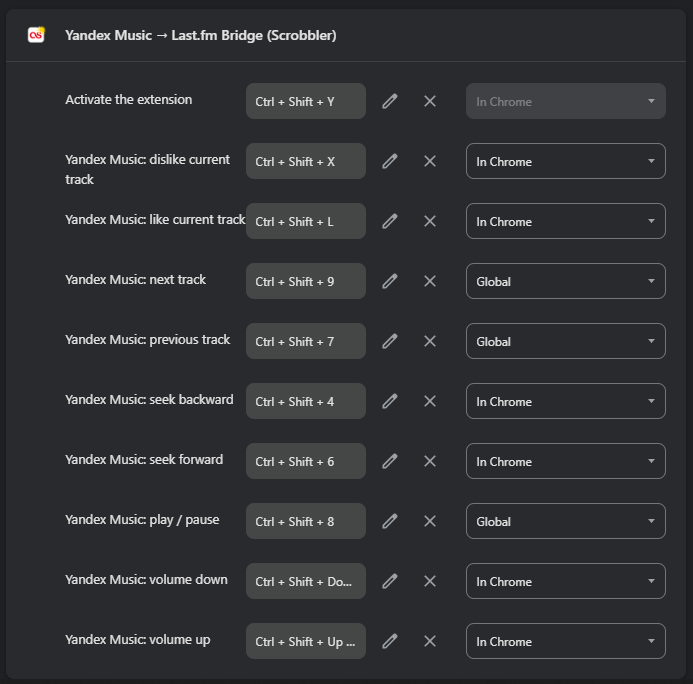
Open Chrome shortcuts
Enter chrome://extensions/shortcuts in the address bar. Find Yandex Music to Last.fm Bridge, press the pencil beside a command, then type the combination you want.
Chrome owns this screen and stores the assignments. YM Bridge cannot silently replace a key you already use.
A practical key map
A numeric layout keeps transport commands easy to remember: 7 previous, 8 play or pause, 9 next, 4 seek backward and 6 seek forward. Use L for like and X for dislike.
Adding Ctrl + Shift reduces collisions with normal typing and common browser shortcuts. Volume can use Ctrl + Shift + Up and Ctrl + Shift + Down.
Global or in Chrome
Set play or pause, next and previous to Global when you want them to work while another application is active. Keep like, dislike, seeking and volume In Chrome unless you specifically need system-wide access.
The Yandex Music tab still needs to be open. A global shortcut changes where the key is accepted; it does not launch the music site by itself.
Resolve conflicts
If Chrome refuses a combination or it does nothing, another extension or the operating system may already own it. Choose a different key, then test it once with Yandex Music playing.
Open Tools and run Control health if the shortcut is accepted but the track does not react. Use Repair controls or reload the Yandex Music tab when the page hook is stale.