Setup guide
Connect Yandex Music to Last.fm
YM Bridge reads the track playing in an open Yandex Music tab and sends eligible listens to your Last.fm account. The extension remains in control of delivery.
Before you start
- Use Chrome and keep Yandex Music open in a tab.
- Install YM Bridge from the Chrome Web Store.
- Have a Last.fm account ready. The Windows companion is not required for scrobbling.
Connect your Last.fm account
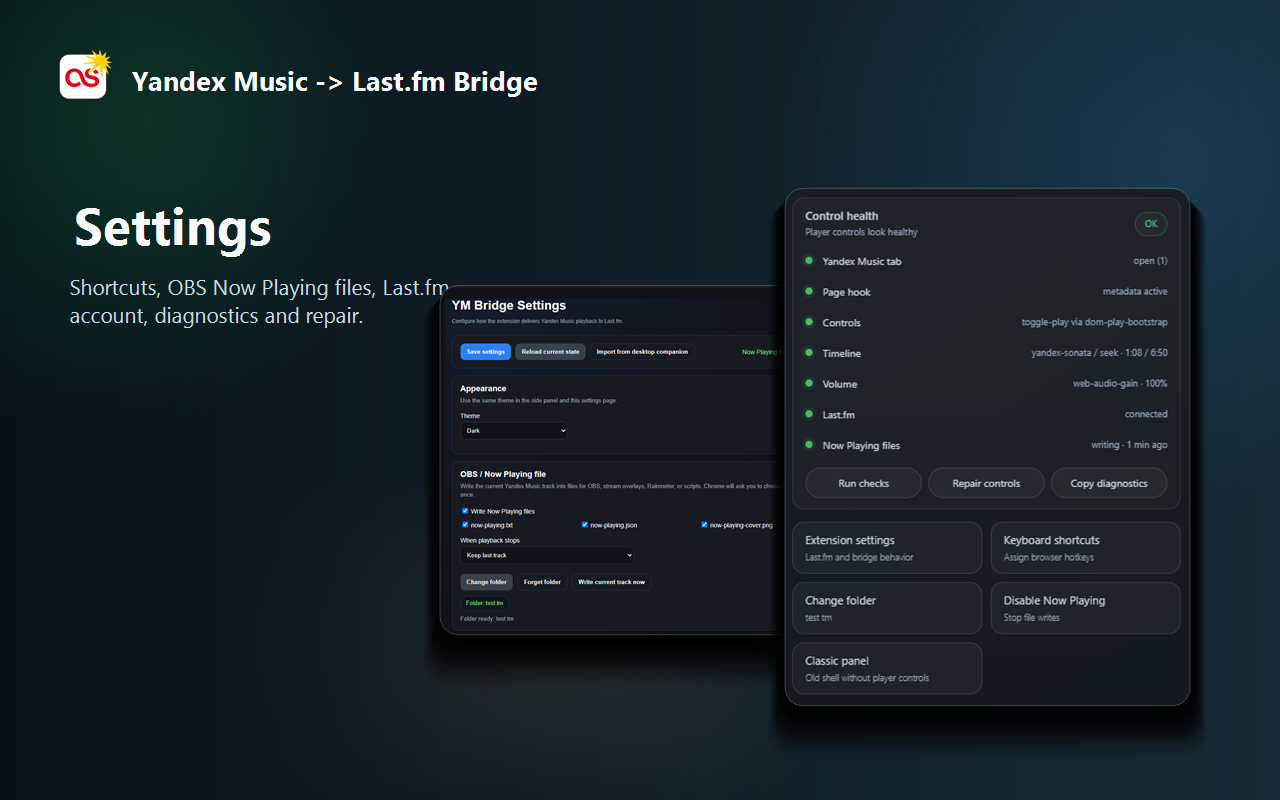
- Open the YM Bridge side panel, expand Tools, choose Settings, then open Extension settings.
- In Last.fm setup, click Connect Last.fm.
- Approve access on Last.fm. The extension stores the returned session key in Chrome extension storage.
- Return to the panel and confirm that Last.fm is shown as connected.
Verify delivery
Start a track in Yandex Music and open the side panel. The current title, artist and delivery target should appear. With normal network access, the target reads direct to Last.fm.
An empty queue can be normal while the current track is handled live. After an eligible listen is sent, Last delivery updates and the track appears in your Last.fm history.
If the normal sign-in is unavailable
Try Connect Last.fm first. If the direct authentication API cannot be reached, YM Bridge can complete the approved token exchange through its service.
The alternative username-or-email and password form runs only after you press its sign-in button. The credentials are sent once over HTTPS to obtain a Last.fm session key, the password is cleared from the form, and it is not stored by the extension or intentionally logged by the relay. See the Privacy Policy for the complete data flow.